Installing a Modpack
Customize your Minecraft with a new collection of mods to include new biomes, mobs, items and quests.
Lagless Modpack Installer
Back Up Your Files
Before installing a new modpack, back up important data. Installing a modpack may overwrite or delete existing files.
Head over to our lagless panel and log in.
On the left menu, look for Modpacks
In this example, we're going to look for BMC4 which is hosted with Modrinth.
Depending on your modpack, you may need to switch provider.

Once you have found the modpack you want to install, press the install button.
Select your version, and whether you want to Delete files or not. Keep in mind, this is irreversible. So make backups if you have not already.
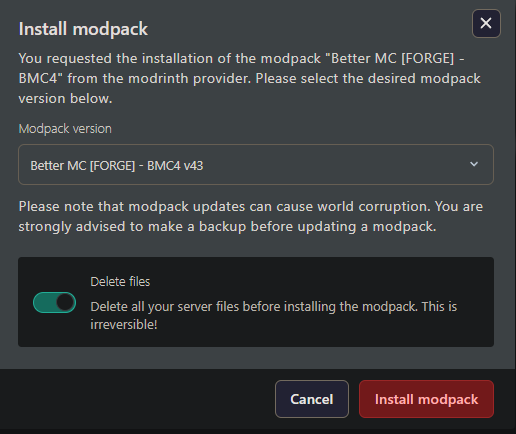
Press Install modpack, it may take a few moments to install.
Enjoy the new modpack.
Uploading a Modpack
If you have a modpack that isn't available on any of our providers or are using a custom modpack to play with friends, you'll need to upload it via SFTP.
SFTP Clients
Read our existing guide on how to connect and upload your server with SFTP.
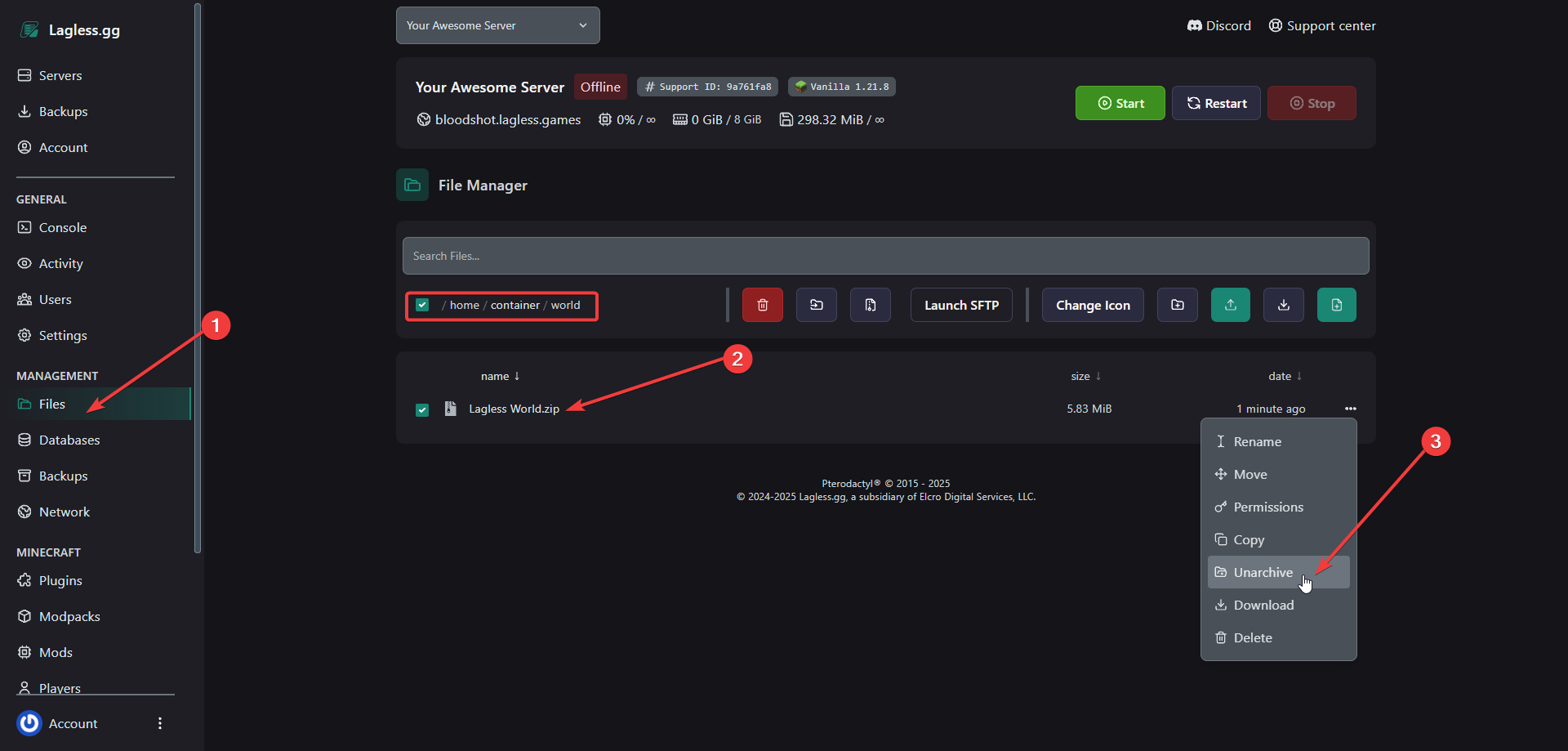
After uploading your zipped modpack, navigate to the File Manager, click on the uploaded file, and select Unarchive.
Custom Modpacks
Use custom modpacks at your own risk. Ensure you've done proper research and are using compatible mods—otherwise, you may encounter server issues, client-side problems, or crashes.