Creating a Custom Modpack
Create a custom modpack, share it online
Introduction
This guide will teach you how to create a custom modpack and upload it for everyone to use.
Creating a Custom Modpack
Download the CurseForge app if you haven't already installed it. This guide uses the Standalone version without Overwolf.
Navigate to Minecraft, MyModpacks and click on Create
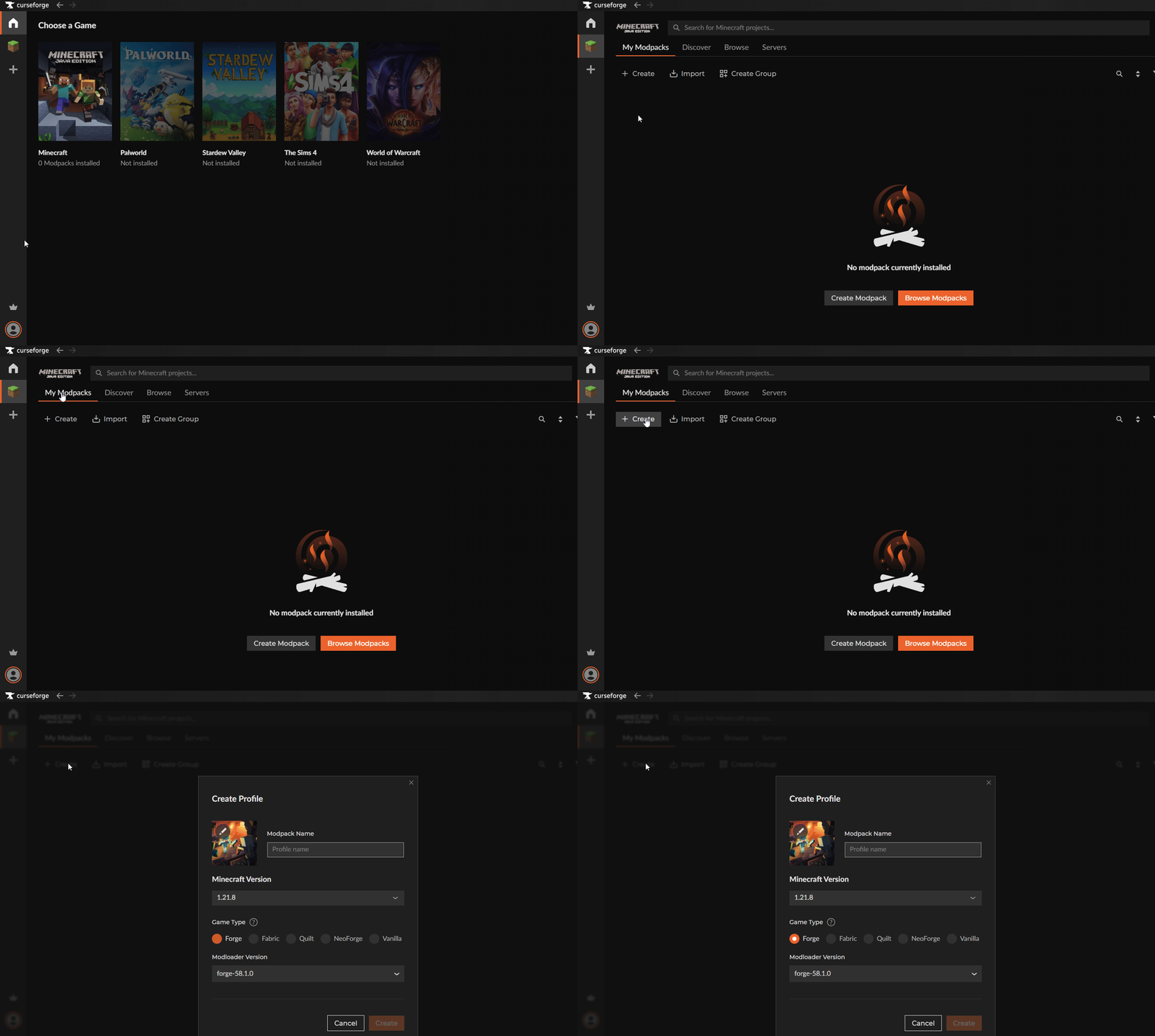
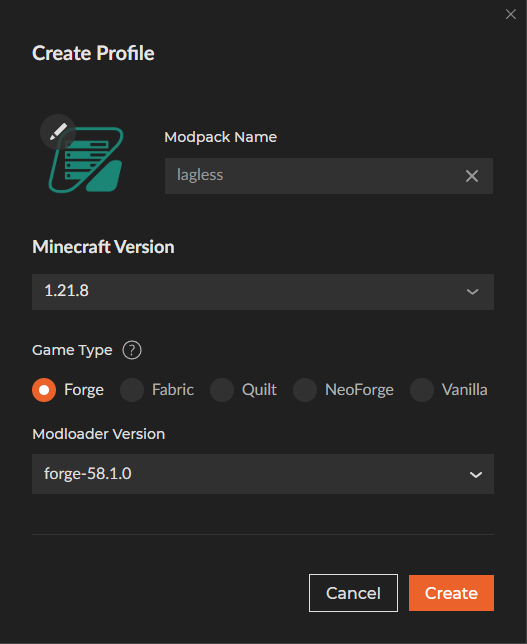
A new window shows up where you can change the Modpack name, version, image, loader and version. Once done click on Create
Click on Add More Content to add mods, shaders, resource packs etc. till you have a great Modpack.
When you have a great modpack, you need to export your modpack. You can do this by clicking the three dots next to the play button, or by right clicking the modpack and clicking Share Profile
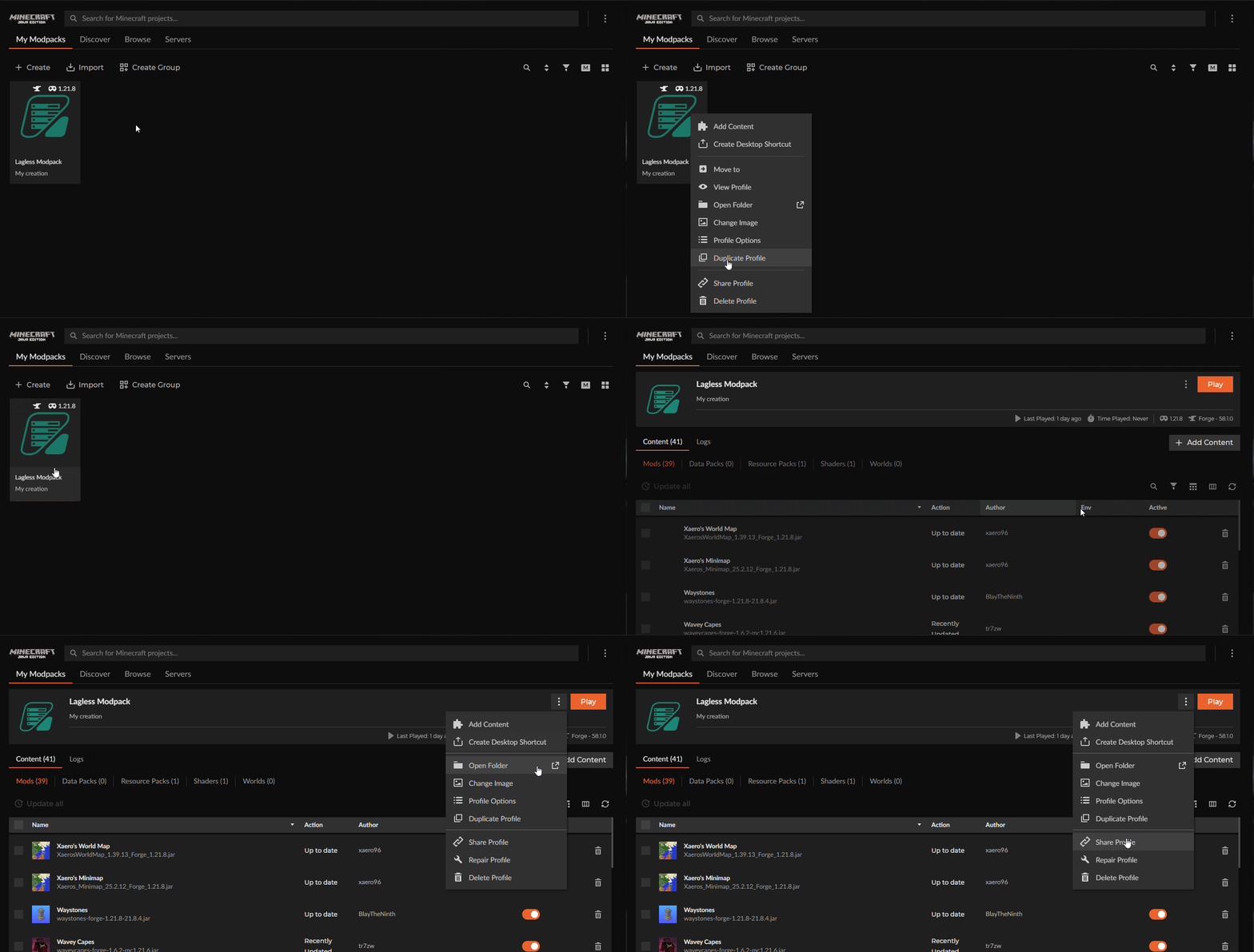
Export as Zip file
You can now change Package Version and set RAM Recommendation. Also, don't tick the Select server mods only, as it does not work well.
Ensure Config and Mods are at least selected. While client only content is not. (such as shaders and client mods)
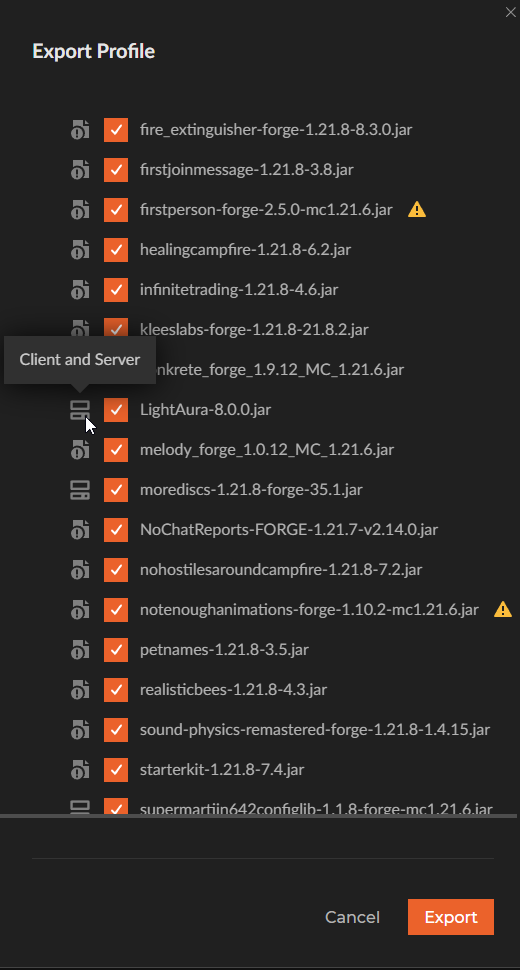
Save the zip file by clicking export.
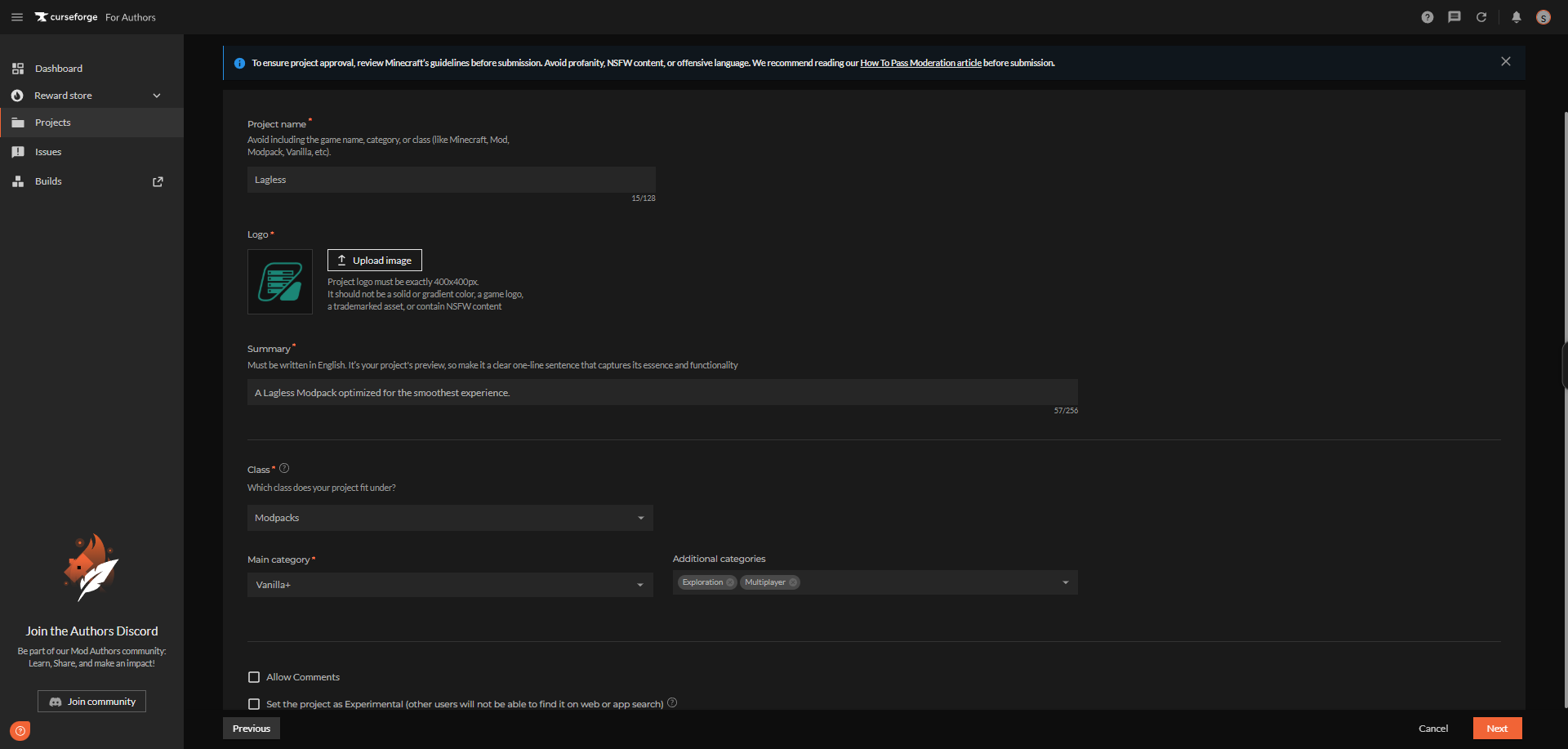
Project name
Avoid including the game name, category, or class like Minecraft, Mod, Modpack, Vanilla, etc. There is a high chance your modpack will not be approved with this.
Become a Creator
Once approved, your modpack will be available in our panel's Modpack tab for easy installation!
Log in to CurseForge
If you don't have an account, create an account.
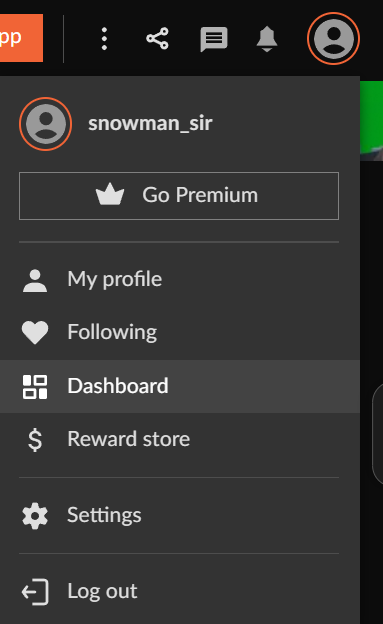
Go to the main page and click your profile in the top right, then click dashboard
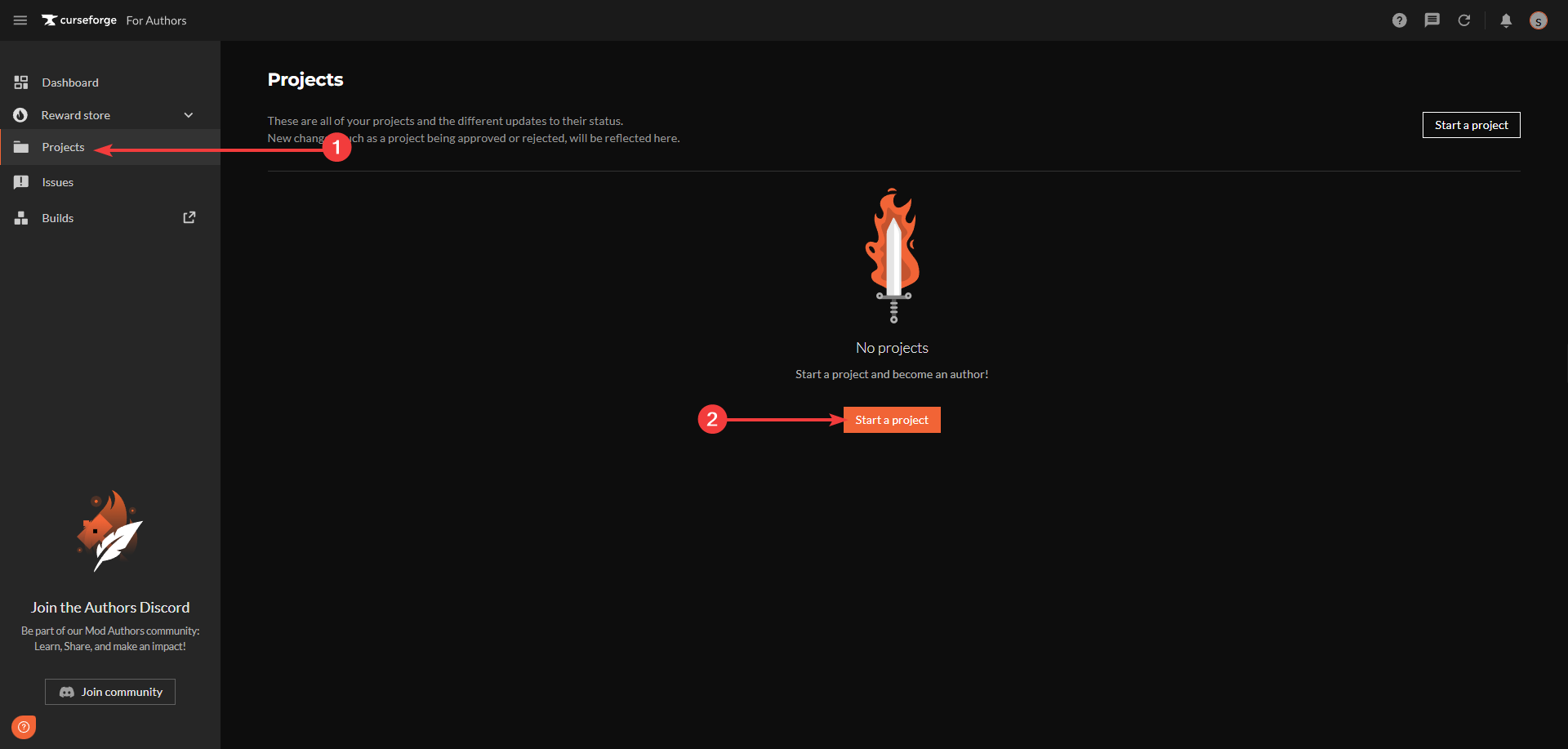
Click on Projects on the left, and click Start a project in the center.
Click on the game you want to start a project for, Minecraft in this instance.
Fill out the information to best describe your modpack and click next.
Give a description about the modpack, and click next.
Fill out the license description, and click create.
You will now see this message This is a new project. Until approved by a Moderator, the project will not be visible to others, and its files will not synchronize across CurseForge.
It has to be approved, for now move to the next step.

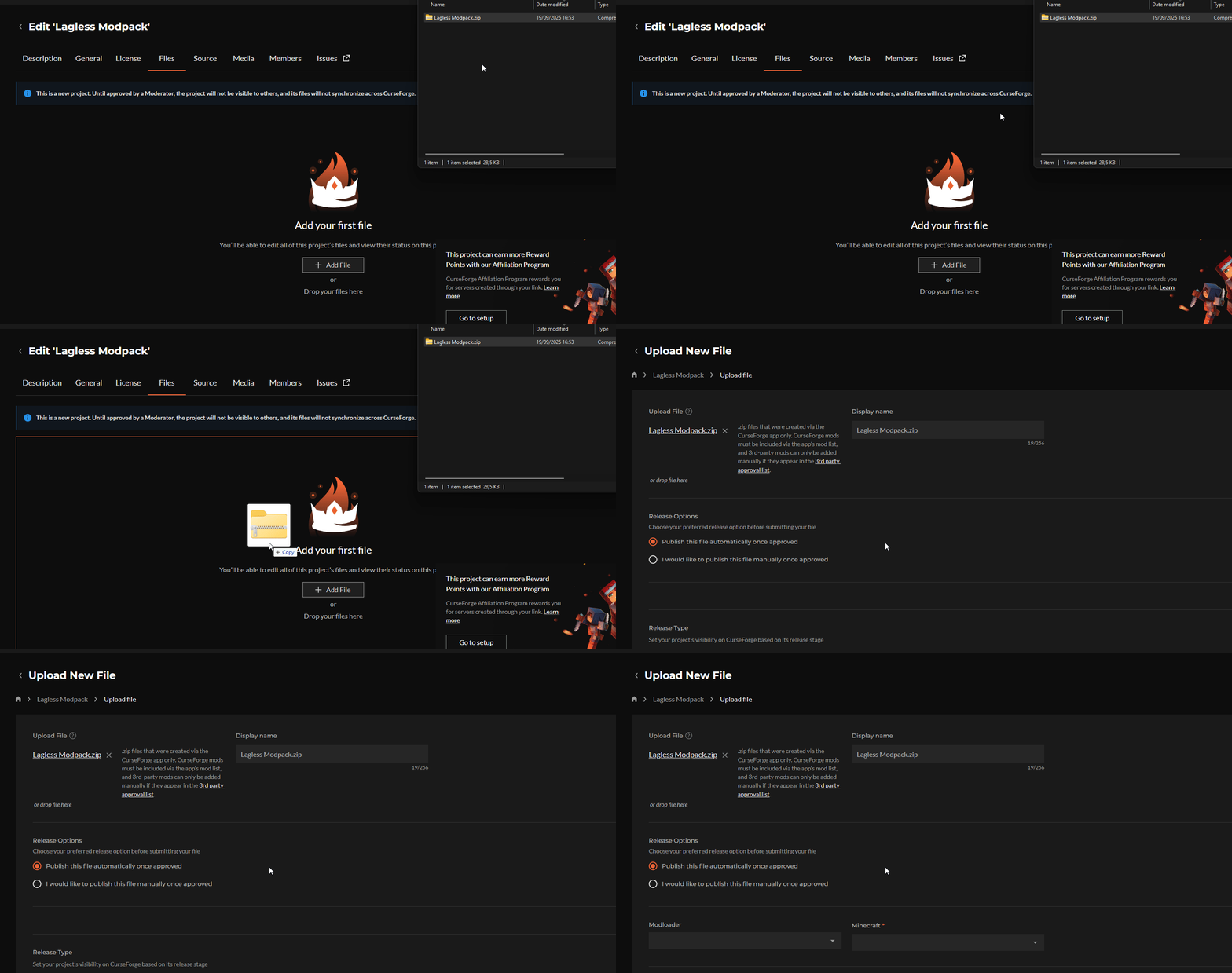
Now go to the Files tab of your project and upload the zip file you exported earlier, fill out the description once more and click Add file
When your project status has been approved, you can now find your modpack in our Modpacks tab on the panel.
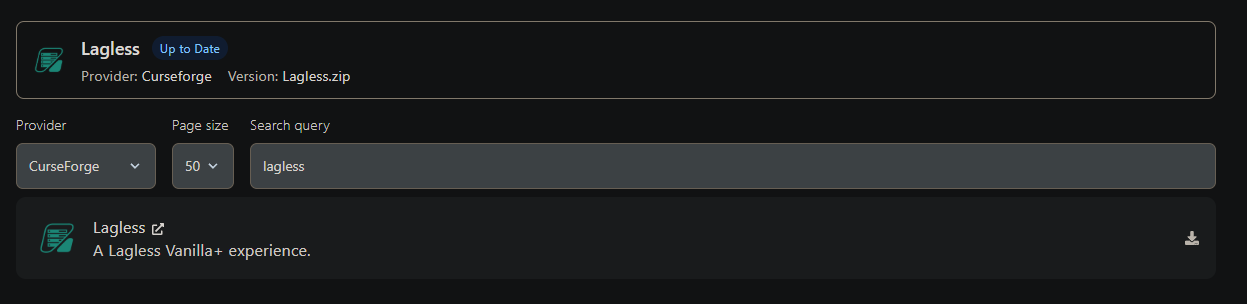
Uploading to Your Lagless Server
Before uploading your modpack ensure you have the right versions.
Go to the versions tab and select the right version for your modpack. Typicall Forge/NeoForge/Fabric
Upload your modpack using sftp
Start your server.